Best 8 OS Imaging and Deployment Solutions For IT Teams (2026)
We reviewed the leading OS imaging and deployment platforms on deployment speed and reliability, driver management, and how well they handle ongoing configuration drift across large device estates.
 Written by
Joel Witts
Written by
Joel Witts
 Technical Review by
Laura Iannini
Technical Review by
Laura Iannini
OS imaging feels like it shouldn’t be this hard. You capture a system, deploy it to new hardware, and move on. In reality, imaging creates a drag across your entire deployment process. Driver mismatches break systems. Image sprawl multiplies because every vendor combination needs its own version. Deployment speeds crawl when you’re using native Windows tools. Meanwhile, IT teams spend thousands of dollars and countless hours maintaining separate images for each hardware configuration.
The right imaging platform eliminates that friction. You build one image, deploy it across mixed hardware without manual configuration. Hardware auto-detection handles drivers. Deployment speeds up dramatically. Post-deployment automation handles software installation and configuration without IT involvement for every machine.
We evaluated multiple OS imaging and deployment tools across imaging speed, hardware compatibility, deployment flexibility, automation capabilities, and total cost of ownership. We evaluated open-source and commercial options, assessing how each handles different hardware profiles, multi-site deployments, and cloud integration. We reviewed customer feedback to identify where vendor claims diverge from actual deployment experience.
This guide gives you the framework to match the right imaging solution to your hardware diversity, deployment frequency, and staffing constraints.
What is OS Imaging and Deployment?
OS imaging and deployment software automates the process of setting up computers at scale. Instead of manually installing the operating system, drivers, and applications on each machine one by one, you create a single master image (a snapshot of a fully configured system) and then copy it to dozens or hundreds of machines simultaneously over the network. This ensures every device starts with the same configuration, saves IT teams significant time, and eliminates the inconsistencies that come with manual setup.
OS imaging platforms capture block-level or file-level snapshots of configured reference systems (golden images) and deploy them to target endpoints via PXE boot, USB media, or network-based distribution. Hardware-independent imaging uses driver injection and abstraction layers to deploy a single image across heterogeneous hardware (different vendors, chipsets, and peripherals) without per-model image maintenance. Deployment methods include unicast (one-to-one), multicast (one-to-many simultaneous), and peer-to-peer relay for bandwidth-constrained sites. Post-deployment automation handles machine naming, domain joining, software installation, and configuration via answer files, scripts, or integration with endpoint management platforms. Enterprise solutions add sector-level imaging for forensic-grade accuracy, image encryption (AES-256), anti-ransomware protection for golden images, and parallel deployment capabilities for provisioning entire rooms simultaneously. Integration with SCCM, Intune, or RMM tools connects imaging into broader device lifecycle management workflows.
OS Imaging and Deployment Solutions Compared
This table compares the 8 OS imaging and deployment platforms we reviewed across their core capabilities.
| Product | Best For | Type | HW-Independent | Network Deploy | Post-Deploy Auto |
|---|---|---|---|---|---|
|
ManageEngine OS Deployer
|
Mixed hardware enterprise fleets
|
Commercial
|
Yes
|
yes
|
yes
|
|
Acronis True Image
|
Home users and small offices
|
Commercial
|
No
|
no
|
yes
|
|
AOMEI Image Deploy
|
Budget-friendly standardized deployments
|
Commercial
|
Yes
|
yes (PXE)
|
no
|
|
Broadcom Symantec Ghost
|
Large-scale standardized deployments
|
Commercial
|
No
|
yes (iPXE)
|
no
|
|
Clonezilla
|
Bare metal recovery and lab imaging
|
Open-Source
|
No
|
yes (Multicast)
|
no
|
|
FOG Project
|
Labs and classrooms with device management
|
Open-Source
|
No
|
yes (PXE)
|
yes (Snapins)
|
|
Ivanti Endpoint Manager
|
Enterprise multi-OS device management
|
Commercial
|
Yes
|
yes
|
yes
|
|
Macrium SiteDeploy
|
Sector-level precision with parallel deploy
|
Commercial
|
Yes
|
yes
|
yes
|
How We Tested
Expert Insights independently researches and tests IT infrastructure and management solutions. We evaluated 8 OS imaging platforms across imaging speed, hardware compatibility, deployment flexibility, automation capabilities, multi-site support, and integration range. We also analyzed customer feedback to validate vendor claims against real-world deployment experience. Read our full methodology

ManageEngine
Best for IT teams managing mixed Dell, HP, and Lenovo fleets at scale
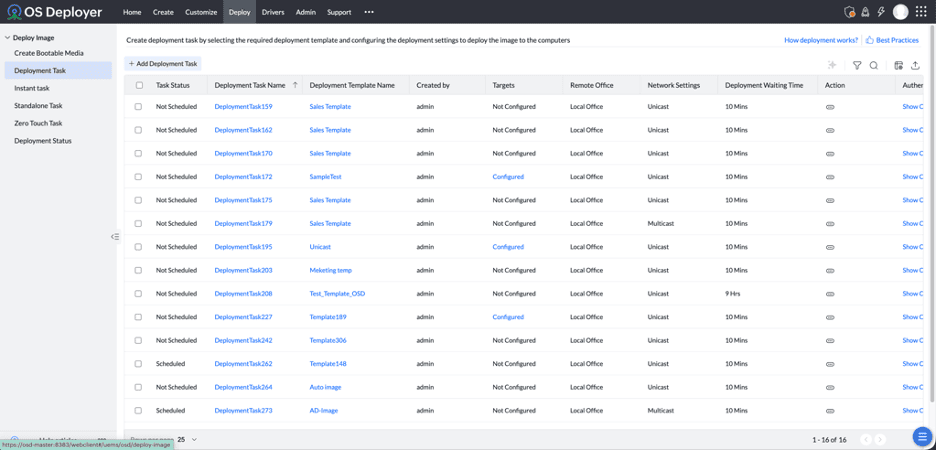
ManageEngine OS Deployer is built for IT teams that are managing bare metal deployments, OS refreshes, hardware replacements and bulk OS deployments across local and remote offices. This tool simplifies traditional deployment workflows by reducing the complexity and manual work required to image and deploy operating systems across different hardware models. For organizations managing Dell, HP, Lenovo and other mixed device fleets, OS Deployer provides a centralized management approach to standardize deployments, automate driver management, and simplify OS deployment without having the need to maintain multiple hardware-specific images.
- ManageEngine OS Deployer is capable of hardware-independent deployment, which allows IT teams to create a single golden image and deploy it regardless of the hardware model. This feature makes it stand out among other tools in the same category.
- It supports remote and zero-touch deployment workflows by enabling IT admins to deploy operating systems to devices at remote locations. This capability makes the tool useful for IT teams looking to manage OS deployments for branch offices and hybrid workforces.
- OS Deployer also reduces manual effort and deployment time by automatically detecting and injecting the required drivers during deployment from a centralized driver repository. The tool further assists IT teams by reducing repetitive manual tasks during large roll-outs with deployment templates, post-deployment automation, and scheduling capabilities.
Customer reviews highlight that initial setup is straightforward, even for teams without dedicated imaging specialists. Remote deployment works reliably across network configurations. Something to be aware of is that image creation timing can be inconsistent, occasionally running longer than expected on complex builds. Some users also note that the documentation lacks depth for edge-case deployment scenarios.
We think ManageEngine OS Deployer is a strong option for teams managing 100+ endpoints who are tired of slow imaging workflows. The combination of fast imaging, hardware-independent restore, and automatic driver management makes it well worth considering if you’re already in the ManageEngine ecosystem or looking to consolidate your deployment tooling.
Strengths
Cautions
Acronis True Image

Acronis
Best for home users and small offices needing reliable system backups and recovery
Acronis True Image (formerly Acronis Cyber Protect Home Office) is designed for home users and small offices that need reliable system backups and recovery without complexity. We think it’s a solid choice if you want full disk imaging, incremental backups, and integrated security in one tool. It covers Windows, macOS, iOS, and Android, with cloud integration for Outlook and OneDrive.
- Incremental disk imaging captures only changes since last backup, keeping file sizes small and backup windows short
- Full disk cloning creates exact bootable replicas including boot information, hidden files, and system settings
- Built-in anti-malware and ransomware protection for small teams without dedicated security tools
- Cross-platform support for Windows, macOS, iOS, Android, and cloud
Users highlight the unified dashboard as a time-saver, with backups, threat monitoring, and recovery all running from one interface. Setup is simple enough for non-technical users to get up and running quickly. However, some customer reviews note that system performance slows noticeably during backups, especially on older hardware. Some users also mention that the interface can feel a bit overwhelming initially because of the bundled backup and security features.
We think Acronis True Image is a good option to consider if you need full system protection without hiring IT staff or getting to grips with multiple tools. The automation and recovery speed reduce downtime, which matters for small teams that can’t afford extended outages.
Strengths
Cautions
AOMEI Image Deploy

AOMEI
Best for IT teams deploying standardized images on a tight budget
AOMEI Image Deploy is a network cloning tool for IT teams deploying standardized OS images across multiple machines simultaneously over LAN. We found the PXE-based deployment model works well for bulk provisioning, and the built-in wizard keeps the learning curve minimal. If you’re running a mixed hardware environment on a tight budget, AOMEI is worth a look.
- PXE boot pushes one system image to multiple clients simultaneously over the network
- Real-time monitoring shows each client’s IP address and restoration status during deployment
- Preset computer names and IP addresses in batches for correct post-imaging network connectivity
- Universal Restore deploys images across different CPUs and motherboards without manual driver injection
Users say the interface is simple and gets the job done without extra complexity. Teams deploying both physical and virtual environments find it handles servers and workstations equally well. Something to be aware of is that PXE server connections occasionally fail on first boot and require a client restart. Some users also flag that disk cloning stops at bad sectors instead of skipping them automatically.
We think AOMEI Image Deploy fits small to mid-sized teams running standardized deployments where budget matters. The free version offers enough capability for testing before committing to paid licensing, which reduces purchase risk. Put simply, it’s a straightforward, no-frills imaging tool that does what it says.
Strengths
Cautions
Broadcom Symantec Ghost Solution Suite

Broadcom
Best for large-scale standardized deployments where speed and simplicity are priorities
Broadcom Symantec Ghost Solution Suite handles imaging and deployment for desktops, laptops, and servers across Windows and Linux environments. We found the disk-to-disk cloning performs well for bulk deployments, and the web-based console scales to support multiple technicians working simultaneously. If you’re running large-scale, standardized deployments where speed and simplicity are priorities, Ghost Solution Suite is a strong contender.
- Real-time server architecture speeds up imaging and restoration for provisioning hundreds of machines
- iPXE support cuts down pre-boot automation time, reducing overall deployment downtime
- Job creation wizards guide technicians through deployment without deep imaging experience
- Agentless device management through OS protocols reduces overhead on managed machines
Customer reviews say the interface is simple and functional for day-to-day imaging tasks. New hires pick it up quickly, which reduces training time. With that said, customization options are limited for complex post-deployment configurations or automation. Some users also report that version upgrades take longer than expected.
We think Ghost Solution Suite makes sense for organizations running large-scale, standardized deployments where speed and simplicity outweigh customization needs. The multi-technician support and web-based console work well for distributed IT teams. But if you need deep post-deployment automation, you may find it a bit limiting.
Strengths
Cautions
Clonezilla

NCHC
Best for teams needing reliable low-level cloning with zero licensing cost
Clonezilla is a free, open-source disk imaging and cloning tool for system deployment and bare metal recovery. We think it’s one of the most reliable low-level cloning tools available, especially for teams comfortable with Linux conventions. It comes in three versions: Clonezilla Live for single machines, Clonezilla Lite Server, and Clonezilla SE for mass deployment across 40+ computers simultaneously using multicast.
- Block-level cloning delivers accurate 1:1 disk copies preserving boot sectors across any file system
- Supports Linux, Windows, macOS, VMware ESX, and Chrome OS on both MBR and GPT partitions
- Boots from USB drive independent of host OS for recovering corrupted drives
- AES-256 encryption for image files with BitTorrent and multicast support for large-scale rollouts
Users highlight the reliability and speed for professional disk cloning. IT teams managing server and workstation environments use it regularly for imaging entire computer labs. However, some customer reviews note that the terminal-based interface is slow to navigate and looks dated. And Linux naming conventions can confuse users unfamiliar with Linux file systems, which makes getting to grips with the tool a bit of a learning curve.
We think Clonezilla is a strong option if you need reliable, low-level cloning and your team is comfortable with Linux conventions. For organizations already using open-source tools or running tight budgets, the zero licensing cost makes it viable even with the interface trade-offs. It’s not the most user-friendly tool, but it’s one of the most accurate.
Strengths
Cautions
FOG Project

FOG Project
Best for labs and classrooms needing imaging with built-in device management
FOG Project is a free, open-source network cloning and management solution for deploying Windows, macOS, and Linux across multiple machines. We found it delivers more than just imaging; it includes remote management features like printer management, hostname changes, domain joining, and user access tracking, which sets it apart from simpler open-source alternatives.
- PXE-based deployment with multicasting for imaging multiple machines simultaneously
- Built-in antivirus scanning, disk wiping, file restoration, and bad block detection
- Snapins let you install software and execute scripts on client machines post-deployment
- Web interface is straightforward with simpler maintenance compared to terminal-based tools
Users say FOG is the least frustrating option for getting network imaging up and running quickly. For non-domain environments, setup is particularly smooth. The workflow matches familiar imaging patterns: build one machine, capture the image, deploy to the rest via PXE boot. Something to be aware of is that domain-joined deployments require additional scripting for unattended installs and post-image configuration, which adds complexity.
We think FOG Project is a strong fit for IT teams managing labs, classrooms, or small to mid-sized deployments where budget matters and you need management tools beyond basic imaging. The web interface and simpler maintenance make it more approachable than terminal-based tools, and the post-deployment capabilities with Snapins add real value.
Strengths
Cautions
Ivanti Endpoint Manager

Ivanti
Best for enterprises managing 1,000+ endpoints across multiple OS platforms
Ivanti Endpoint Manager is an enterprise platform for managing and deploying Windows, macOS, Linux, Chrome OS, and IoT devices from a centralized console. We were impressed by the single-pane management approach, which handles OS migration, deployment, automated updates, and software distribution in one place. If you’re managing 1,000+ endpoints across multiple OS platforms, Ivanti is well worth considering.
- Day Zero management of new OS versions without waiting for vendor updates
- User profile management lets employees move between machines without losing settings or data
- Self-service software portal gives end users access to install approved applications independently
- Discovery and normalization features identify devices and installed software for inventory and compliance
Users say the platform makes large-scale device management straightforward from a single point. Deployment teams push packages across internal networks without challenges, and end users appreciate the self-service software portal. With that said, some customer reviews note that agent upgrades require manual updates across all devices with each platform release. Some users also report that agent performance can impact endpoint resources depending on policy configuration.
We think Ivanti Endpoint Manager makes sense for enterprises managing large, multi-OS environments where centralized control and automated updates justify the investment. The full feature set delivers value when you need imaging, patch management, and remote control in one platform. It’s one of the stronger enterprise options on the market.
Strengths
Cautions
Macrium SiteDeploy

Macrium
Best for enterprises needing sector-level precision with parallel deployment at scale
Macrium SiteDeploy handles OS imaging and deployment for PCs, mobile devices, and servers across hybrid environments. We found the sector-level imaging creates accurate bit-for-bit copies, which matters for compliance or forensic requirements. If you’re managing hundreds of endpoints across multiple locations and need precision imaging with one-touch deployment, SiteDeploy is a strong solution to consider.
- Supports up to 60 parallel deployments per golden image store for imaging entire rooms simultaneously
- ReDeploy and Driver Harvesting technology ensures deployments across different hardware without manual intervention
- Post-deployment automation handles first-time configuration and boot connections
- Image Guardian provides anti-ransomware protection with machine reset to trusted known state
Users highlight the deployment kit for imaging entire rooms simultaneously, which speeds up bulk provisioning in educational or lab environments. Site Manager simplifies scheduling and automation for recurring deployment tasks. However, some customer reviews note that the management UI is confusing for users handling multiple sites or complex deployments. Some users also flag that the licensing renewal process creates a bit of friction.
We think SiteDeploy fits enterprises managing hundreds of endpoints across multiple locations where sector-level accuracy and automated deployment justify the investment. The ability to run 60 parallel deployments and maintain trusted recovery states works well for organizations with standardized hardware fleets. It’s one of the more precise imaging tools we’ve seen.
Strengths
Cautions
Other OS Imaging and Deployment Services
We researched lots of OS imaging and deployment solutions while we were making this guide. Here are a few other tools that are worth your consideration:
Enables users to image Windows XP through Windows 10 and Linux using Unicast and Multicast.
OS Imaging and Deployment Pricing
OS imaging pricing ranges from free open-source tools to enterprise commercial platforms. The table below reflects what we verified.
| Product | Starting Price | Billing | Link |
|---|---|---|---|
|
ManageEngine OS Deployer
|
Contact for quote
|
Annual
|
|
|
Acronis True Image
|
From $49.99/year (Essentials)
|
Annual
|
|
|
AOMEI Image Deploy
|
Free version available; paid on quote
|
Annual
|
|
|
Broadcom Symantec Ghost Solution Suite
|
Contact for quote
|
Annual
|
|
|
Clonezilla
|
Free (open-source)
|
N/A
|
|
|
FOG Project
|
Free (open-source)
|
N/A
|
|
|
Ivanti Endpoint Manager
|
Contact for quote
|
Annual
|
|
|
Macrium SiteDeploy
|
Contact for quote
|
Annual
|
|
OS Imaging and Deployment Checklist
These are the evaluation criteria we recommend when selecting an OS imaging and deployment platform.
A tool that claims hardware independence but fails on your specific Dell, HP, or Lenovo models creates more work than maintaining separate images.
Marketing claims about imaging speed mean nothing without testing on your network; a 20GB image deploys very differently on gigabit LAN versus a congested WAN link.
Imaging that requires IT to manually configure each machine after deployment eliminates most of the time savings that imaging provides.
Manual driver injection for every hardware model multiplies image maintenance effort; automatic driver detection and injection is what makes single-image deployment practical.
PXE deployment handles bulk provisioning over LAN; USB imaging works for remote sites without network infrastructure. Most teams need both options.
Imaging tools that require physical server presence at each site don't scale; remote deployment and distributed image stores matter for multi-location organizations.
Open-source tools cost nothing to license but require Linux knowledge and dedicated server hardware; commercial tools cost more but reduce staffing requirements.
Golden images that aren't encrypted or protected from tampering create a single point of compromise; if an attacker modifies your master image, every deployment is compromised.
The Bottom Line
The right OS imaging tool depends on your hardware diversity, deployment frequency, staffing capabilities, and budget. There’s no single best tool because the trade-offs vary significantly.
If you’re managing frequent refreshes across mixed hardware and want deployment speed, ManageEngine OS Deployer slashes imaging time significantly. Integration with Endpoint Central speeds post-deployment configuration.
For precise sector-level imaging with one-touch multi-site deployment, Macrium SiteDeploy delivers forensic-grade accuracy. The ability to image entire rooms at once matters in educational and lab environments.
If budget constraints matter and your team is comfortable with Linux, FOG Project provides network imaging with built-in device management at zero licensing cost. Clonezilla offers reliable block-level cloning for teams needing low-level disk copy accuracy.
For enterprise-scale control across Windows, macOS, Linux, and IoT devices, Ivanti Endpoint Manager provides centralized OS deployment with user profile management. AOMEI Image Deploy is solid for straightforward network imaging, and Acronis Cyber Protect Home Office bundles imaging with threat detection for small office and home user scenarios.
Broadcom Symantec GHOST Solution handles large-scale deployments with simplicity when you stick to standard imaging patterns. Read the detailed reviews above to evaluate the features that matter for your specific deployment model and hardware diversity.
Everything You Need To Know About OS Imaging & Deployment Software (FAQs)
OS Imaging software takes a snapshot of your OS, any relevant data, and executable files, allowing you to store them and restore them to a platform when needed. This snapshot is so useful as it contains the settings and configurations of your OS, allowing you to not only restore it, but means you don’t have to tweak settings to adjust it to your preferences. This also means that you can deploy it to multiple computers, ensuring that your systems are consistent and efficient. Rather than having to configure each device individually, you can push the same settings across your whole fleet.
OS Imaging tools start by taking a snapshot record of your OS and associated data from a reference machine. Whatever settings are selected on this device will be stored in the OS image.
This data is then stored securely in a repository or server. As with any important data, this should be protected and secured with robust security protocols to prevent it from being corrupted or lost.
You can then restore and deploy this snapshot to selected devices with ease. Depending on the type of OS image, this deployment can be carried out using physical hardware such as USBs or via the network using protocols like PXE (Preboot Execution Environment).
OS Imaging and deployment software solutions can be technical and complex solutions. Because of this, it can be difficult to understand what the key features are that you should look for in a platform. In this section we’ll identify the most useful features that every effective OS Imaging tool should have.
- Ease of Use – This ensures that your platform is usable and efficient
- Compatibility – Your platform should be compatible with the OS that you use
- Customization Options – you should be able to adjust the settings of your OS imaging and deployment
- Centralized Management – This links to ease of use; your platform should centralize all data and insights, giving you extensive visibility
- Fast And Effective Deployment – To ensure your platform is easy to use and efficient, you should be able to deploy OS settings efficiently
IT Management Resources
Further reading on it management from Expert Insights — buyers' guides, comparison articles, and platform-specific shortlists.


 Written By
Joel is the Director of Content and a co-founder at Expert Insights; a rapidly growing media company focused on covering cybersecurity solutions.
He’s an experienced journalist and editor with 8 years’ experience covering the cybersecurity space. He’s reviewed hundreds of cybersecurity solutions, interviewed hundreds of industry experts and produced dozens of industry reports read by thousands of CISOs and security professionals in topics like IAM, MFA, zero trust, email security, DevSecOps and more.
He also hosts the Expert Insights Podcast and co-writes the weekly newsletter, Cyber Weekly. Joel is driven to share his team’s expertise with cybersecurity leaders to help them create more secure business foundations.
 Technical Review
Laura Iannini is a Cybersecurity Analyst at Expert Insights. With deep cybersecurity knowledge and strong research skills, she leads Expert Insights’ product testing team, conducting thorough tests of product features and in-depth industry analysis to ensure that Expert Insights’ product reviews are definitive and insightful.
Laura also carries out wider analysis of vendor landscapes and industry trends to inform Expert Insights’ enterprise cybersecurity buyers’ guides, covering topics such as security awareness training, cloud backup and recovery, email security, and network monitoring. Prior to working at Expert Insights, Laura worked as a Senior Information Security Engineer at Constant Edge, where she tested cybersecurity solutions, carried out product demos, and provided high-quality ongoing technical support.
Laura holds a Bachelor’s degree in Cybersecurity from the University of West Florida.